Migrating Events from GMR to FMS
The Migrate Events task helps you to migrate GMR events, alarms, and device configuration information to FMS. A migration results file will be generated to allow the process to be restarted without losing previously successful migration results in case of errors or omissions.
Some GMR configuration items included in the Migrate Events process will not migrate successfully from GMR to FMS. See Configuration Data Items that Do Not Migrate from GMR to FMS for more information.
You must have proper security authorizations to export GMR files and import files into FMS. See FMS Security for more information about security event authorization.
Note: If you have any devices that have daily data, and that have had contract hour changes applied, you must manually change the Node record to reflect the modified contract hour, prior to migrating Events.
Migrating GMR Events
To Migrate Events, Alarms, and Configuration from GMR to FMS
Events, alarms, and configuration information are migrated from GMR to FMS in a single process, using the following procedure.
- Start CygNet FMS Toolbox, and then click GMR Migration to access associated tasks.
- Click Migrate Events to access the Migrate Events pane.
|
Migrate Events |
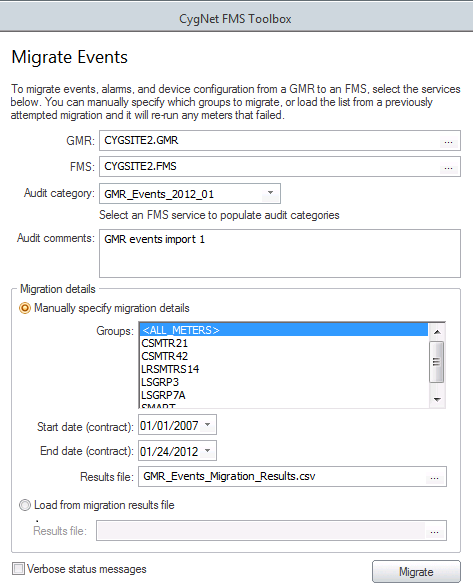
- Enter information into the following fields.
- GMR text box.
- To export groups from a Site.Service located on the same domain, type the name of the GMR Site.Service from which you wish to migrate events, alarms, and configuration data into FMS, or click ... to access the Select GMR to Migrate From dialog box to browse to your selection and then click OK.
- To export groups from a Site.Service located on a different domain, type [XXXX], where XXXX is the name of the domain, followed by the name of the GMR Site.Service from which you wish to migrate events, alarms, and configuration data into FMS.
- FMS text box. Type the name of the FMS Site.Service to which you wish to migrate events, alarms, and configuration data from GMR, or click ... to access the Select FMS to Migrate To dialog box to browse to your selection and then click OK.
- Audit category drop-down menu. Select an audit category from the options in the drop-down menu. This menu will be populated based on the FMS Site.Service selected. Audit categories are configured on the Admin menu. See Auditing in CygNet Measurement for more information about creating audit categories.
- Audit comments text box. You have the opportunity to type Comments regarding the events, alarms, and configuration migration into the text box, which will become part of the audit record for the import. Although comments are optional, they can be helpful when auditing or reviewing records later.
- Select Migration details. Either manually specify migration details or load migration details from a previously attempted migration results file prior to restarting the process.
- To manually specify the meters for which to migrate data, click Manually specify migration details. Enter details into the following fields.
- Groups list box. Click to select the group(s) of devices for which you wish to migrate events, alarms, and configuration data. You may select <ALL METERS>, a single group, or select multiple groups by pressing Ctrl+Click or Shift+Click.
- Start date (contract) date selector. Enter the start date, in Contract time (C), of the time window for which to migrate data. Valid dates are on or after 1/2/2000.
Note: Results may be retrieved from a date preceding the requested range, as necessary to obtain complete configuration information from GMR to apply to the selected migration start date.
- End date (contract) date selector. Enter the end date, in Contract time (C), of the time window for which to migrate data.
- Results file text box. A results file will be generated to facilitate completion of file migration for any portions that might initially fail. You can use the default or specify a results file name and directory location. If no results file is specified, the file defaults to the current directory location of the CygNet FMS Toolbox utility. To specify a results file name and location, type the file name into the text box, then click ... to access the Select Location to Save Results File dialog box to browse to your selected location, and then click Open.
- To specify a previously attempted migration file from which to complete a data migration, click Load from migration results file. Type the name of the file from which you wish to continue migrating data from GMR, or click ... to access the Select Migration Results File to Load dialog box to browse to your selection and then click Open.
- Click to select/clear the Verbose status messages check box. See Data Items that Do Not Migrate from GMR to FMS for more information about making this selection.
- Select this option to include migration successes, items ignored, item failures, and errors in the status messages.
- Clear this option to include only errors in the migration status messages.
- Click Migrate to migrate the selected data from GMR into FMS. Migration status, including any errors, will be displayed in the text box above the Migrate/Restart button.
- If you want to interrupt the migration process for any reason, do the following.
- Click Cancel prior to completion of the process. Migration status will be displayed in the results text box.
- Click Restart to return to the Migrate Events configuration pane.
- Manually make any desired changes and/or additions to the Migrate Contract Hour configuration pane.
- Click Load from migration results file. To use a file other than the default migration results file, type the name of the file from which you wish to continue migrating data from GMR, or click ... to access the Select Migration Results File to Load dialog box to browse to your selection and then click Open.
- Click Migrate to resume the migration.
Note: When you resume the migration, the process will skip devices for which data previously migrated successfully, and will migrate data for the remaining devices.
- If any migration errors have occurred, do the following.
- Identify any migration errors that occurred. Migration status is displayed in the results text box.
- Review the migration results file and manually correct any errors preventing successful migration of events, alarms, and/or configuration information.
- Click Restart to return to the Migrate Events configuration pane.
- Manually make any desired changes and/or additions to the Migrate Contract Hour configuration pane.
- Click Load from migration results file. To use a file other than the default migration results file, type the name of the file from which you wish to continue migrating data from GMR, or click ... to access the Select Migration Results File to Load dialog box to browse to your selection and then click Open.
- Click Migrate to rerun the migration.
Note: When you rerun the migration, the process will skip devices for which data previously migrated successfully, and will migrate data for the remaining devices.
- Repeat steps 7 and/or 8 as necessary, until the migration is successful.
More:
 Data Items that Do Not Migrate from GMR to FMS


